Tuesday, 19 June 2012

A simple way to run roadrash on windows 7 (without any graphics problem).

A simple way to run Roadrash on windows 7 (without any graphics problem).

Many have problem with Road rash when play on Windows 7, when they open the road rash game may  display is abnormal and something like faded or oil paint like display. Here is a simple solution for that.

1. Right click of road rash icon go to properties and then open file location.
2. Create a bat file and write down the following code:

taskkill /f /im explorer.exe
Rashme.exe
start explorer.exe

or
taskkill /f /im explorer.exe
Roadrash.exe
start explorer.exe
Here Important is the *.exe file-name should be the same as game name.
3. Run the bat file and enjoy the game without problem.
4. You can also make a desktop shortcut of that bat file to start from desktop.

Wednesday, 13 June 2012

Error: "Could not load an object because it is not available on this machine"

Question

When I use certain utilities I get a Microsoft Forms error:
Could not load an object because it is not available on this machine.or
Could not load some objects because they are not available on this machine.

Answer

This is an Excel problem which can be solved by doing a repair of your MS Office installation.
  1. Close Excel if it is open.
  2. In the Control Panel choose "Add or Remove Programs" (or Programs and Features in Windows Vista).
  3. Select Microsoft Office in the list and click on the Change button.
  4. Choose "Repair"
Additionally we recommend installing the latest Office service packs from Microsoft.

Tuesday, 12 June 2012

Printer network connection problems. Windows can not connect, error 0x0000000d

I was able to back up the Win7 HKEY_Local_system registery key.
I then followed all these steps and stil get the same error. What do I do next.
To resolve this problem, modify the value of the Previous Names registry entry on the print server so that it contains valid data. To do this, follow these steps:
Click Start
, click Run, type regedit, and then clickOK.
Locate and then click the following registry subkey:
HKEY_LOCAL_MACHINE\SYSTEM\CurrentControlSet\Control\Print\Environments\Windows NT x86\Drivers\Version-3\<DriverName>
On the File menu, click Export.
In the File name box, type printerName, and then clickSave.
Right-click printerName.reg, and then click Edit.
Locate the sentence which starts with the "Previous Names" string, and then replace the sentence with the following text:
"Previous Names"=hex(7):00,00 (This had :00,00,00,00 so I changed it)
On the File menu, click Save.
Exit Notepad.
Right-click the file that you saved in step 7, click Merge, and then clickOK.
Restart the Print Spooler service. To do this, follow these steps:
Click Start
Collapse this imageExpand this image
, type services.msc in the Start Search box, and then click services.msc in thePrograms list.
Collapse this imageExpand this image
If you are prompted for an administrator password or for confirmation, type your password, or clickContinue.
Right-click Print Spooler, and then click Stop.
Right-click Print Spooler, and then click Start.

Wednesday, 30 May 2012

Windows 7 Windows Vista Windows XP Office 2010 Office 2007 Office 2003 How To Guides Other How to fix "Task Manager disabled" by Administrator in Windows XP/Vista

This article explains How to fix  the Task Manager disabled by Administrator error in Windows XP/Vista. The steps outlined below are easy to follow.

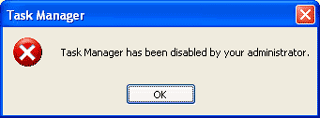
If you're not part of domain environment and one day find that you're unable to access the Windows Task manager due to the error message below, there's a good chance you've been infected with a virus.


How to fix  the Task Manager disabled by Administrator error in Windows XP/Vista


You can fix this using the following method:
-Click Start >> Run

- Paste the following command into the Run dialog box:
REG add HKCU\Software\Microsoft\Windows\CurrentVersion\Policies\System /v DisableTaskMgr /t REG_DWORD /d 0 /f

-Click OK (A restart may be required)

Saturday, 26 May 2012

Disable Interactive Services Detection Dialogue In Windows 7

Here’s a guide on how to disable Interactive Services Detection Pop-ups in Windows 7:

1. Go to Start – Type in services.msc inside the Windows Search box then press enter.

2. Under Services window, scroll down until you find Interactive Services Detection. Right click it then go to Properties.

3. Under General tab, choose Disabled from the Startup type options.

4. Click Apply and then OK. Reboot your PC.


Interactive Services Detection In Windows 7


Thursday, 24 May 2012

validating identity -wireless Setup

1)Open your "Wireless Network Connection" where it displays the available wireless networks.

2) Click "Change Advanced Settings". Now go to "Wireless Network Connection properties",
3) Click the "Wireless Networks" tab.
4) Click "Properties" then
5) open the "Authentication" tab. UNCHECK the top box "Enable IEEE 802.1x authentication for this network".


Saturday, 12 May 2012

How do I uninstall Deep Freeze?

Disable Deep Freeze before uninstalling it.
To disable Deep Freeze:
  1. Hold down the shift key and double-click the Deep Freeze icon. Alternatively, you can press CTRL+ALT+SHIFT+F6. 
  2. Enter your password and click OK.
  3. If you have not yet entered a password you should be able to click OK without entering a password.
  4. The Boot Options dialog is displayed. Select "Boot Thawed" and click OK. This will disable Deep Freeze on the next reboot.
  5. Reboot your computer. After the computer reboots, you are ready to uninstall Deep Freeze.
To uninstall:
  1. Locate the installation file you used to install Deep Freeze on your computer. By default, the name of this file is called "DF5Std.exe" for versions 5.X and "DF6Std.exe" for versions 6.X.
  2. Run the installation file (DF5Std.exe or DF6Std.exe).
  3. Select the option to "Uninstall"
Deep Freeze is uninstalled and your computer is rebooted.