https://www.amazon.in/gp/search/ref=as_li_qf_sp_sr_tl?ie=UTF8&tag=gninfotech-21&keywords=lenovo laptop&index=aps&camp=3638&creative=24630&linkCode=ur2&linkId=1cf315618813719e20d473da1ef861dd
Thursday, 7 February 2019

Tuesday, 25 December 2018
Windows 7: Error copying large file - Not enough space to copy file.
Solution for the Error "There is not enough space on the disk" while
copying very large file. Usually greater than or 8 GB. This problem is
caused by FAT file format. The solution to this error is to convert the
file format to NTFS. May be in future MS should consider changing the
error to "File size too big FAT32 file system". It would make more sense
instead of False 'Out Of Disk Space' Error When Copying Large.
To solve this problem (Not enough space to copy file), convert the drive to NTFS with NoSecurity setting. Do the following:
To solve this problem (Not enough space to copy file), convert the drive to NTFS with NoSecurity setting. Do the following:
- Click the Start button
- Click All Programs
- Click Accessories
- Right click Command Prompt
- Click Run as Administrator
- Enter the command, convert /fs:ntfs /nosecurity (drive should be the drive letter of your external hard drive, for example convert F: /fs:ntfs /nosecurity )
Tally Memory Access Violation - (Software Exception 0xC0000005)
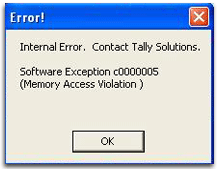
If you have been working with Tally for sometime, you might have come accross 'Memory Access Violation' error with some code - '0xC0000005'. This usually spells doom to many users. Luckly, there are somethings you can do to attempt to solve the problem.
Step 1: Edit the Tally.ini Configuration File
There is a setting that tells Tally to automatically load a company. Supposing the company file is corrupted, you might never start Tally. So disable it. The 'Tally.ini' file is in Tally directory.Step 2: Adjust Screen ResolutionTally has issues when being used with fewer colours. Additionaly, different versions of windows have different minimum requirements. Access Display Settings in the control panel and change Display Settings as follows:Windows 98: Step 3: Remove/Delete PrintersYes, sometimes Tally has a thing with printers! Make sure you have printer installation CDs nearby. Delete the configured printers (including vitual printers). Go to Start > Control Panel > Printers & Faxes. Try to fire tally. If it works, re-install only printers that you use and you should be fine.Step 4: Contact Tally SupportAt this point, you probably have a more complex problem - this should not make you give up. Contact Tally solutions for more help.How to Repair Damaged Company FileRestore older backupIn 'Step 1' above, you might have established the problem to be a corrupt company file.
If you encounter 'Memory Access' error while editing a recordSometime everything works well so long as you are not deleting or modifying a record. I noticed that, for some unknown reasons this problem arises when I try to delete a certain record. I have tried to re-produce this scenario without success. Here is what you can do if you have this kind of problem:
|
Tally Error Code 2147483650
- Company.900 |
How to enable or disable network adapters using PowerShell
you can even use the PowerShell command line shell to disable or enable any network adapters that you don't use on your PC.
Disabling adapter
To disable a Wi-Fi or Ethernet network adapter on Windows 10 using PowerShell, use these steps:- Open Start.
- Search for Windows PowerShell, right-click the top result, and select Run as administrator.
-
Type the following command to identify the name of the adapter you want to disable and press Enter:
Get-NetAdapter | format-table
-
Type the following command to disable the Wi-Fi or Ethernet adapter and press Enter:
Disable-NetAdapter -Name "YOUR-ADAPTER-NAME" -Confirm:$false
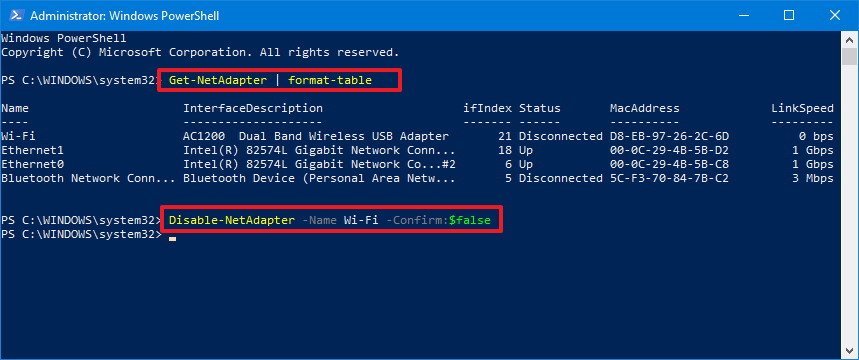
In the command remember to specify the name of the adapter you want to disable. The quotation marks are only required if there are spaces within the name.
Enabling adapter
To enable a network adapter on Windows 10 using PowerShell, use these steps:- Open Start.
- Search for Windows PowerShell, right-click the top result, and select Run as administrator.
-
Type the following command to identify the name of the adapter you want to enable and press Enter:
Get-NetAdapter | format-table
-
Type the following command to disable the Wi-Fi or Ethernet adapter and press Enter:
Enable-NetAdapter -Name "YOUR-ADAPTER-NAME" -Confirm:$false
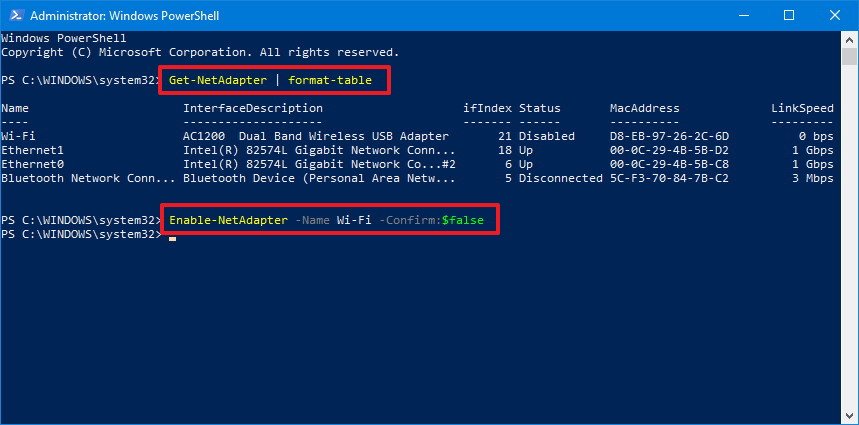
In the command remember to specify the name of the adapter you want to enable. The quotation marks are only required if there are spaces within the name.
How to enable or disable network adapters using Command Prompt
On Windows 10, you can use the netsh command tool to disable or re-enable network adapters on your device.
Disabling adapter
To disable a network adapter using netsh in Command Prompt, use these steps:- Open Start.
- Search for Command Prompt, right-click the top result, and select Run as administrator.
-
Type the following command to identify the name of the adapter you want to disable and press Enter:
netsh interface show interface
-
Type the following command to disable the Wi-Fi or Ethernet adapter and press Enter:
netsh interface set interface "YOUR-ADAPTER-NAME" disable
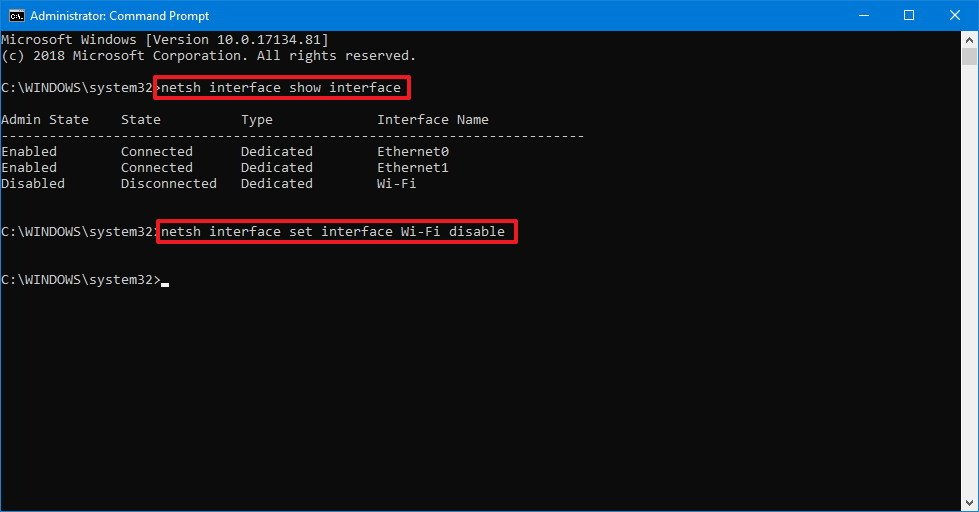
In the command remember to specify the name of the adapter you want to disable. The quotation marks are only required if there are spaces within the name.
Enabling adapter
To enable a network adapter using netsh in Command Prompt, use these steps:- Open Start.
- Search for Command Prompt, right-click the top result, and select Run as administrator.
-
Type the following command to identify the name of the adapter you want to enable and press Enter:
netsh interface show interface
-
Type the following command to disable the Wi-Fi or Ethernet adapter and press Enter:
netsh interface set interface "YOUR-ADAPTER-NAME" enable
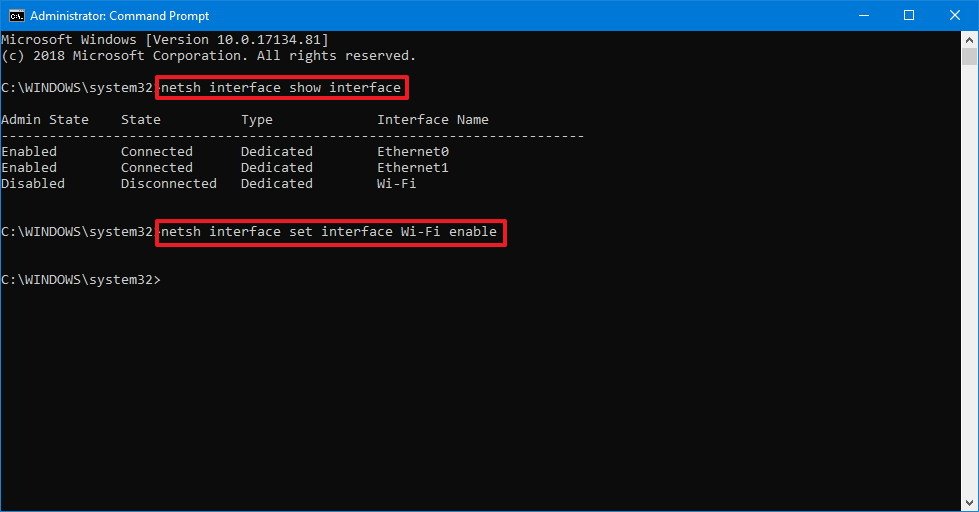
In the command remember to specify the name of the adapter you want to enable. The quotation marks are only required if there are spaces within the name.
Friday, 29 June 2018
Speed up a Windows 10 System
The Microsoft Windows 10 operating system is quite
efficient and performs well using default settings. However, it is
possible to speed up Windows 10 even more and improve its performance.
Try one or more of the following options to speed up your Windows 10
computer, as well as help reduce or eliminate potential errors.
Turn off shadowing and visual effects
Windows 10 includes some appealing look and feel features
to program windows, text, icons, and other areas. While it may look
nice and even flashy, it comes at a cost. Those features, otherwise
known as shadowing and visual effects, use up system resources, which
can cause Windows to run slower.
To turn off these resource draining features, follow the steps below.
- In the Search Windows text box, next to the Start button on the taskbar, type sysdm.cpl and press Enter.
- In the System Properties window, click the Advanced tab.
- On the Advanced tab, click the Settings button in the Performance section.
- In the Performance Options window, select the Adjust for best performance option, then click the OK button.
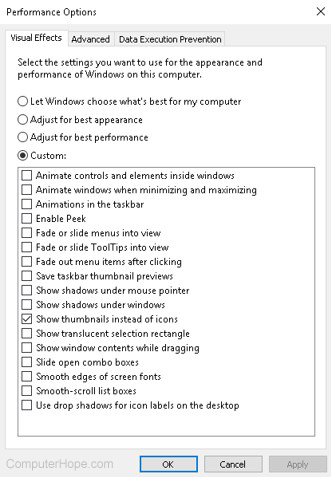
Tip: If you have picture files and like to see a thumbnail of that picture as the icon for the file, check the box for the Show thumbnails instead of icons option. Doing so will result in the Custom option being selected instead of the Adjust for best performance option, which is okay.
Adjust Windows power settings
Computers use power, that is no secret. However, how and
where computers use power is not something commonly known. By default,
the Windows operating system often utilizes a power plan that can result
in slower computer performance. If you have a desktop computer, or a
laptop computer connected to a power adapter, you can adjust the power
plan used by Windows and increase the computer's performance.
Note: If you have a laptop
computer and are using the battery instead of the power adapter, it is
recommended that you do not adjust the power plan. The battery can be
drained much faster if you adjust the power plan to allow for higher
performance in Windows.
To view and adjust the power plan in Windows, follow the steps below.
- Open the Windows Control Panel.
- Find and click the Power Options utility.
- In the Power Options window, select the High performance power plan, then close the window.
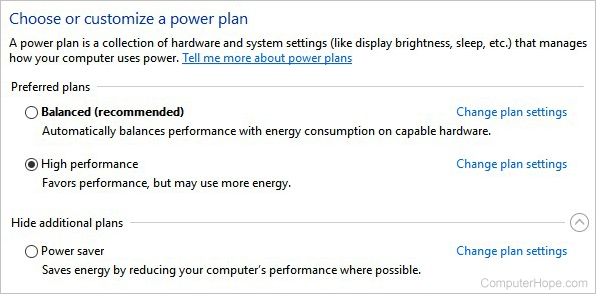
If you want to adjust or the settings of the High performance power plan, click the Change plan settings link next to that power plan option. You can adjust two power settings in the Edit Plan Settings window, or click the Change advanced power settings link to further adjust the power plan settings.
Run Windows System Maintenance
Windows 10 has a built-in maintenance utility that can
help find and fix issues in the operating system. It can also identify
and run processes that can help improve computer performance.
To access and use the Windows System Maintenance utility, follow the steps below.
- In the Search Windows text box, next to the Start button on the taskbar, type system maintenance, then press Enter.
- In the Security and Maintenance window, click the Troubleshooting link towards the bottom of the window.
- In the Troubleshooting window, under the System and security section, click the Run maintenance tasks link.
- Click the Next button to run the Troubleshooter utility. If a message appears saying to run the Troubleshooter as an administrator, click the Try troubleshooting as an administrator option.
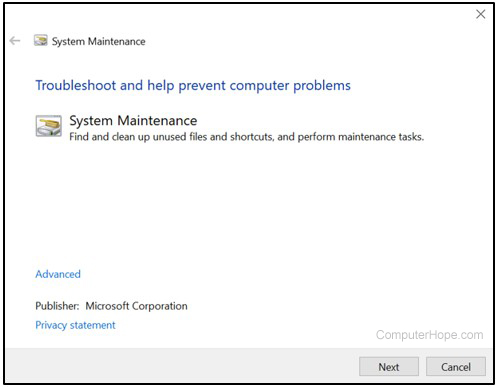
- If any errors or issues are found, or any suggestions are provided, follow the steps to fix the errors and issues, and implement the suggestions.
Stop/remove TSRs and disable startup programs
Programs and processes that run in the background, known
as TSRs, use up memory on the computer and can cause the computer to run
more slowly than it could. Some of these programs and processes are not
essential to the operating of the computer and Windows operating
system, and they can be turned off.
To turn off and disable TSRs and other programs that
startup with Windows, follow the steps provided on the web page linked
below.
If you are unsure which programs and processes to turn off and disable, visit the Should I Block It
website linked below and search for the name of the process or program.
The Should I Block It website can help you determine if the process or
program is needed or not for correct computer, Windows, or other
software operation.
Clean the Windows registry
The Windows registry stores lots of information about the operating system,
software, and files. If there is bad information, incorrect shortcuts
to programs, or other problems, it can cause the computer to run slow.
Issues in the registry can also cause errors, including blue screen of death errors.
Correcting problems in the registry can help to speed up a
computer, allow it to run more efficiently, and eliminate errors. The
registry is very complex and not something you want to fix manually, as
it could cause even worse problems. Using a registry cleaner is a better
option. Below are a couple registry cleaners that we recommend.
- CCleaner - fixes many registry issues, and includes several additional tools to speed up a computer
- EasyCleaner - a basic, but powerful registry cleaner
- Glary Utilities - a powerful registry cleaner, and includes several additional tools to free up hard drive space and improve computer performance
Subscribe to:
Posts (Atom)